

AI Rendering
Place your massing in a photorealistic 3D map of the real city and turn any view into a rendered image in under a minute.
The Rendering workspace turns your massing into photorealistic images. Your buildings are placed in a 3D map of the real neighbourhood, so the render shows the design in its actual surroundings.
Opening Rendering
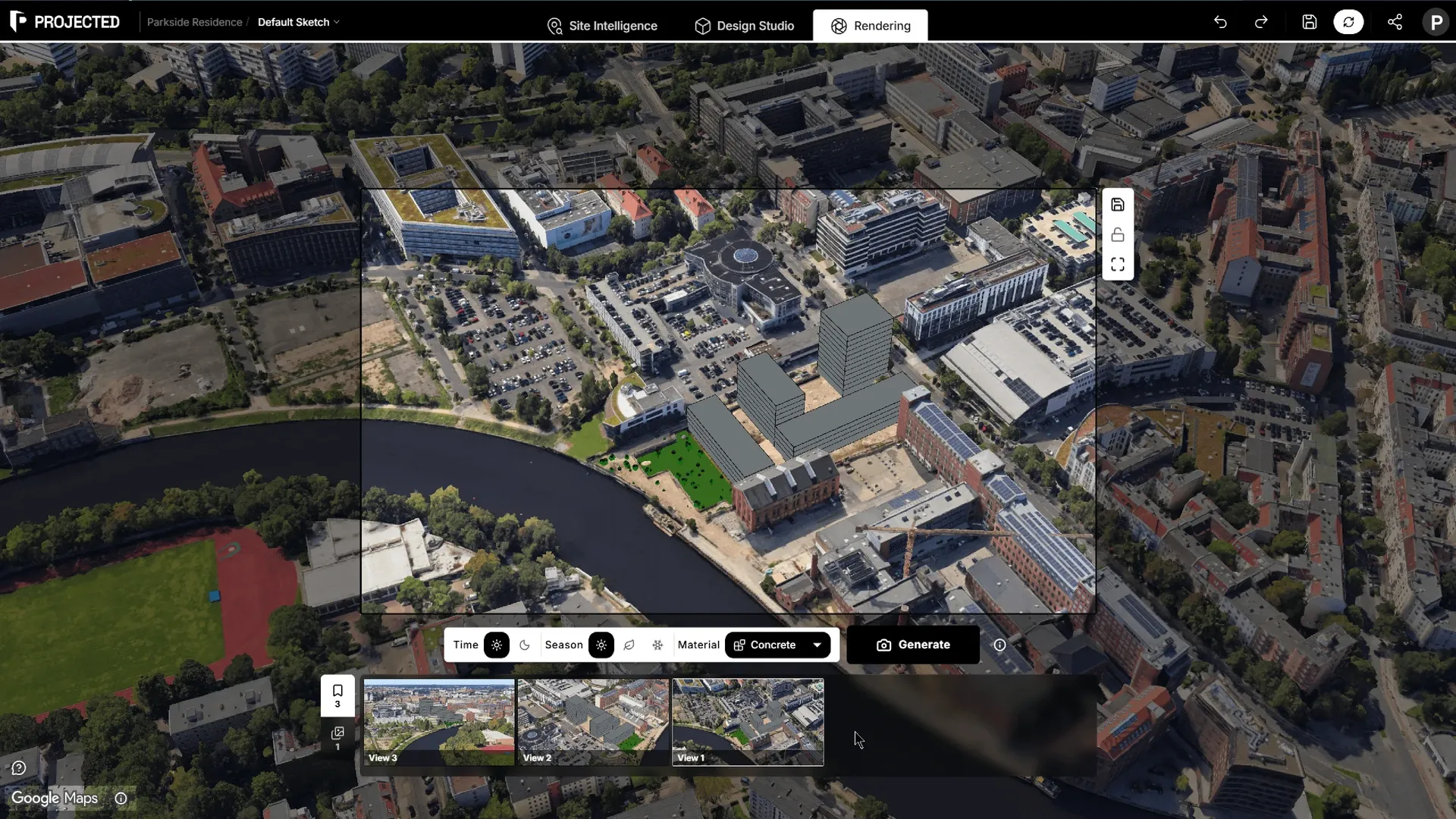
Click Rendering in the top bar. Projected prepares your models, uploads them and places them on the map. This takes a few seconds the first time.
Framing the view
Navigate the map to find your angle:
- Zoom to extents frames your design.
- Save current view keeps the camera position in the Saved views strip. Click a saved view to go back to it; double-click to rename it.
- Lock camera keeps the camera still, so you can render several takes from exactly the same angle.
Choosing a style
The style bar sets what the render looks like:
| Option | Choices |
|---|---|
| Material | Concrete, plaster, brick, stone, wood, metal, glass or terracotta |
| Season | Summer, autumn or winter |
| Time | Day or night |
Facade details from the Facade view, such as windows and balconies, guide the render.
Generating a render
Click Generate render. A render takes about 45 seconds. The result appears in the Render results strip, where you can open and download it.
Render credits
Each render uses one render credit. The capture toolbar shows the credits you have left.
| Plan | Credits |
|---|---|
| Pro | 100 per month |
| Team | 500 per month |
When you run out, the Generate button tells you no credits are left. Credits renew each billing month.
Comparing renders
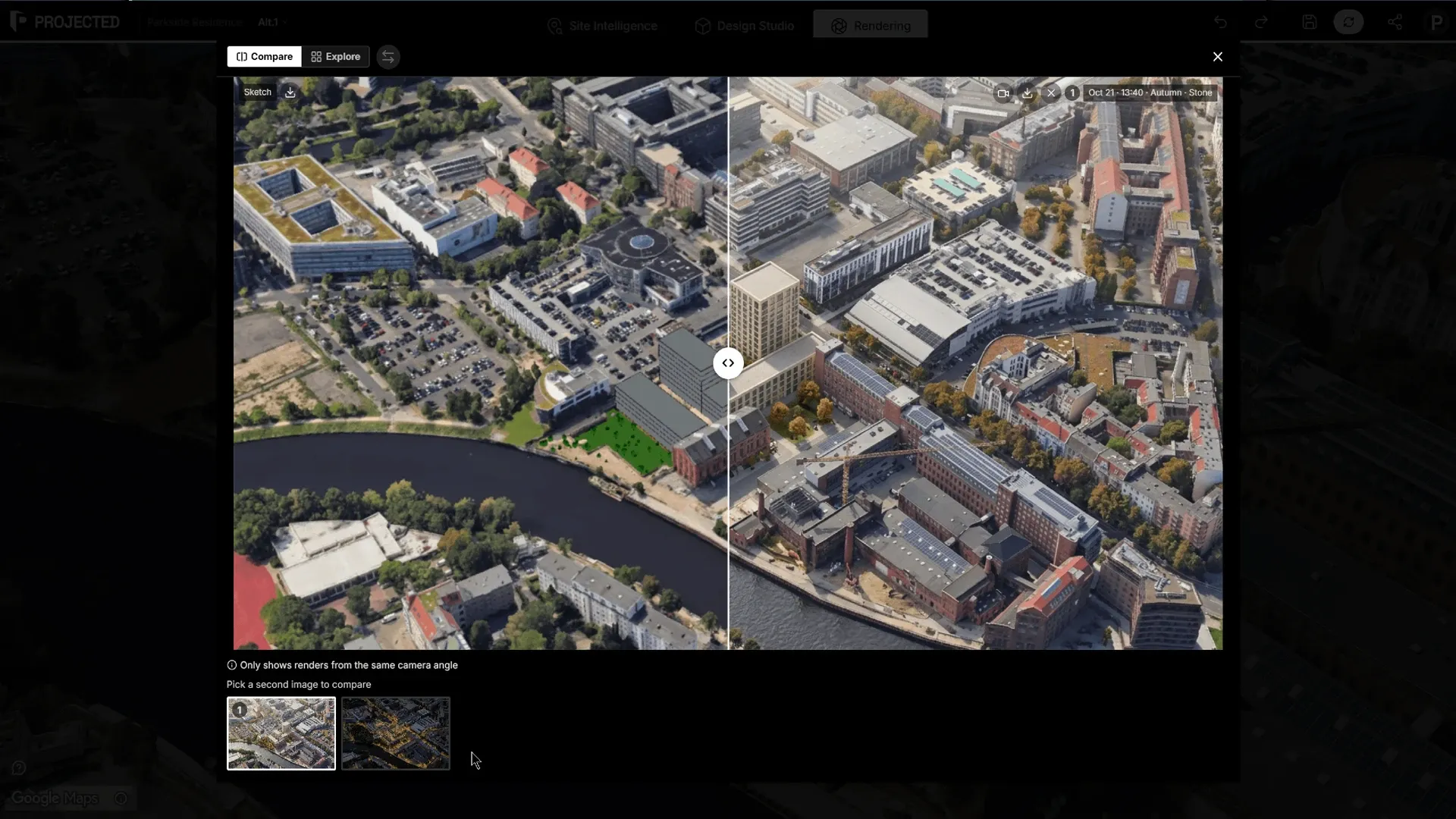
Click Preview comparison to open the comparison tool. It has two modes:
- Compare: put two images from the same camera angle side by side with a slider, for example the sketch and its render, or two material options. Swap order switches them.
- Explore: compare up to four views side by side.
Click a thumbnail to add or remove it. Download selected images saves them all at once. Move camera to this view brings the map back to the angle an image was taken from.
Tips for good renders
- Model the facade first: windows, balconies and a ground floor read much better than plain massing.
- Use a low, human-eye-level angle for street views, and a higher one for context.
- Lock the camera and render a few takes with different materials, then compare them.