

Buildings
Draw buildings along a line, set their width, height and floors, give each floor a use, and reshape them in place.
Buildings in Projected are drawn along a spine: a line you click, with a width on one or both sides. This makes bars, L-shapes, courtyards and perimeter blocks quick to draw and easy to adjust. For free-form shapes, use volumes.
Drawing a building
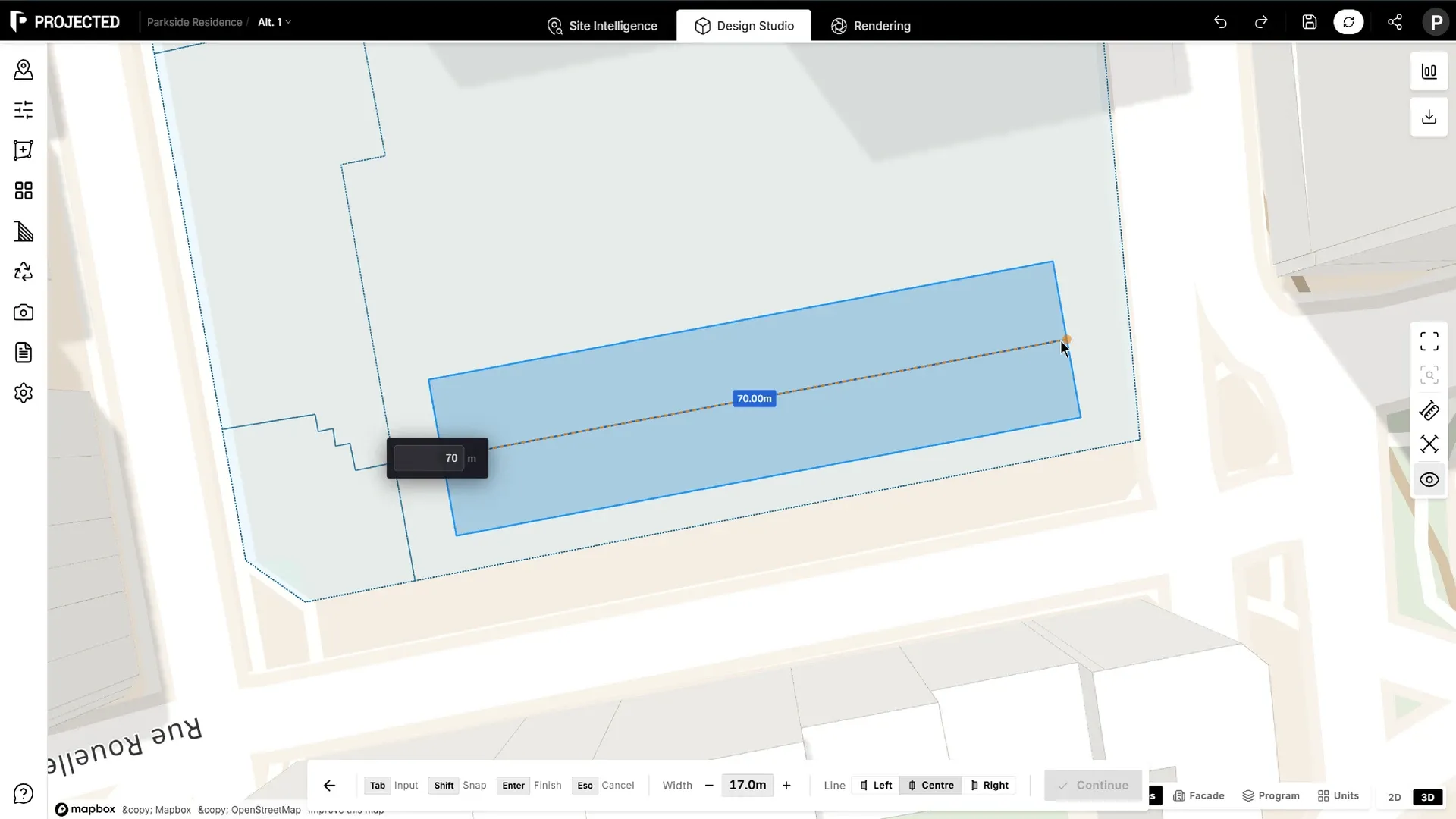
- Click Add Building in the main toolbar.
- Choose where the building sits relative to the line you draw, under Line:
- Centre: the line runs through the middle of the building.
- Left or Right: the building sits to one side of the line, for example along a plot edge.
- Set the Width (the building depth).
- Click to place the points of the spine. Press Tab to type an exact length and angle.
- Press Enter to continue.
- Move the mouse up or down to set the height, then click to confirm.
The building is created with floors of 3 m by default.
Floors and uses
Select the building and open Properties:
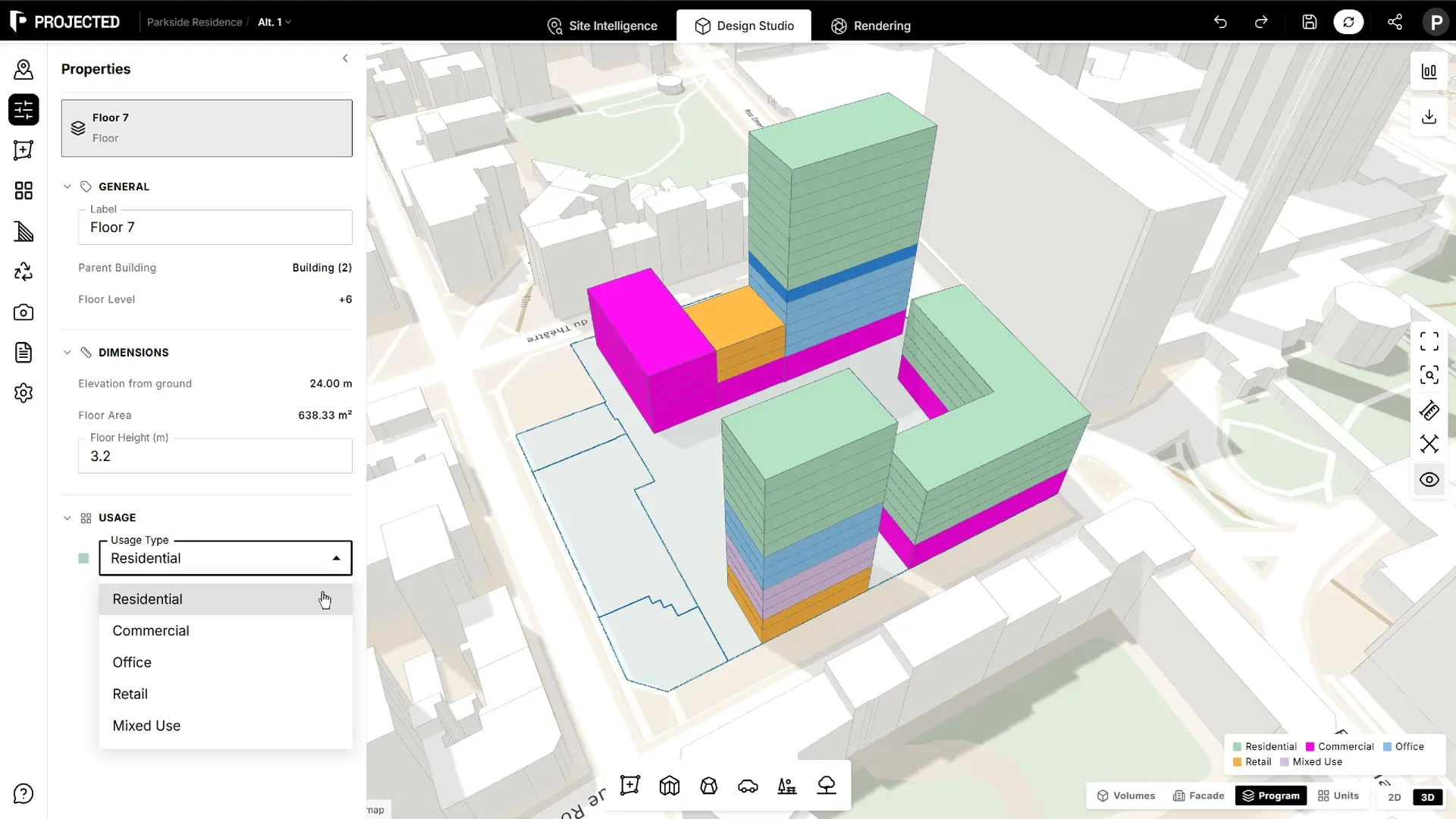
- Floor Count: add or remove floors. You can also drag the handle on top of the building to add or remove floors visually.
- Floors: each floor has its own height and use:
| Use | Typical for |
|---|---|
| Residential | Housing |
| Office | Workplaces |
| Retail | Shops, usually on the ground floor |
| Commercial | Other commercial uses |
| Mixed Use | Floors that combine several uses |
Uses drive the colours of the Program view, the area schedule and the carbon analysis. Retail and commercial ground floors get shopfronts in the facade.
Underground levels
A building can have levels below ground, for example two levels of car parking. They are not drawn in the viewport and not designed (no zones, units or facade), but they count in the figures.
Select the building and open Properties. Under Underground levels:
- Click Add a level below. Each click adds a level under the last one: Level -1, then Level -2, and so on.
- Set each level’s use and height (3 m by default).
- Click Remove level to delete one.
| Use | Typical for |
|---|---|
| Parking | Car parks |
| Storage | Cellars and storage rooms |
| Technical | Plant rooms and services |
| Retail | Shops below ground |
| Commercial | Other commercial uses |
Each level takes the building’s footprint. The section shows the total below-ground area and, for parking levels, an estimate of the parking places: one place per 25 m² of parking area, which allows for ramps, aisles and cores.
Below-ground area is kept apart from the GFA: it doesn’t count towards FAR or coverage, and the building’s height and floors are unchanged. It appears in its own lines in the statistics, the area schedule and PDF reports, and adds substructure carbon in the carbon analysis.
Reshaping a building
- Change its length: drag either end of the building.
- Change its height: drag the floor handle on top.
- Edit its shape: double-click the building. Its spine points appear:
- drag a point to move it (hold Shift to snap to standard angles),
- press + or - to make the building wider or narrower,
- press Alt or click Revert to go back to the shape you started from,
- click Confirm or press Enter to keep the change, Exit or Esc to leave.
Roof and facade
The Roof and Facade sections of Properties set the roof shape and the windows, balconies and entrance. See Facades & Roofs.
Building operations
With a building selected, the element toolbar offers:
| Operation | How it works |
|---|---|
| Duplicate | Click where to place the copy. |
| Rotate | Click the centre, move to rotate and slide, click or press Enter to confirm. |
| Mirror | Click two points to define the mirror axis. |
| Split | Click a start point, aim, and click or press Enter to cut the building in two. |
| Delete | Removes the building and its floors. |
Press Esc to cancel any operation.
Height and site rules
A building’s height is the top of its highest floor, plus the roof when Count roof in building height is on. The site rules and the statistics use that height.