

Plots
Draw or import the site boundary, and manage every plot and its rules from the Plots panel.
A plot is a piece of land you design on. Most projects start with one plot; a masterplan can have many. Each plot has its own site rules, and the statistics count the buildings, parking and parks that sit inside it.
The Plots panel
Open Plots from the left rail. It lists every plot of the sketch, so you never have to find a plot in the viewport to work on it:
- Each row shows the plot’s name, area and origin (drawn, or the cadastral parcel it came from), with a dot for its rules: grey for no rules, black when all are met, red when one is broken.
- Point at a row to highlight the plot in the viewport. Click the row to open it, which also selects the plot; selecting a plot in the viewport opens its row.
- The zoom button next to a row frames the plot in the viewport.
- An open row lets you rename the plot, set its site rules, see how the design complies, remove the existing buildings standing on it, and delete the plot.
Zoning (France)
For sites in France, each plot’s zoning is read from the national planning portal (Géoportail de l’Urbanisme) as soon as the plot exists, and kept up to date when you change its shape. A short notice tells you the zone of a plot you’ve just drawn or imported; View opens it in the Plots panel.
The plot’s row shows, under Zoning:
- the zone(s) covering it, with their share of the plot (U urban, AU to be urbanised, A agricultural, N natural), and the plan with its approval date. When a plot spans several zones, a warning says so;
- the height areas drawn on the zoning map. When a plain height is given, Apply sets it as the plot’s maximum height; with several areas, the lowest is used for the whole plot. The rule then shows that it comes from the map, until you change it;
- the other items mapped on the plot: building lines, reserved areas, protected trees, parking or social housing sectors, risks, noise…;
- links to the zone’s rules (at the zone’s page when the plan provides it), the zoning maps and all the plan’s documents.
While the row is open, these items are drawn around the plot in the viewport; point at one in the list to highlight it. Where a commune has no local plan, the panel says the national planning rules (RNU) apply.
Note: Zoning comes from the documents published on the portal. It is indicative: check the official documents, and ask the town hall when in doubt.
Drawing a plot
- Click Draw plot in the Plots panel, or Add Plot in the main toolbar.
- Click on the ground to place each corner.
- Close the shape by clicking the first point again, or click Finish.
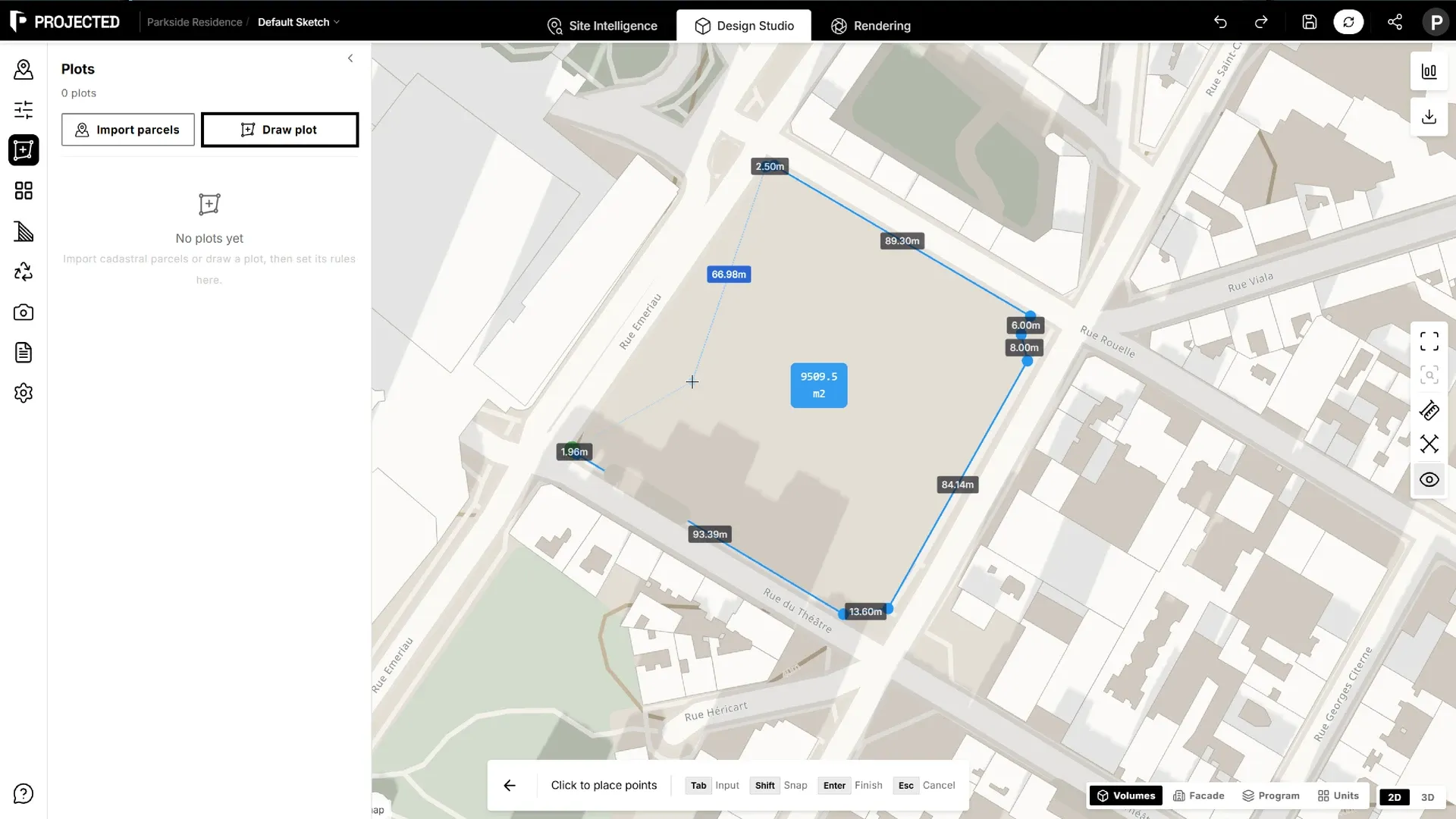
While you draw:
- Snap aligns points to nearby edges, corners and angles. Turn it off in the toolbar for free placement.
- Press Tab, or click Input, to type the exact length and angle of the next segment.
- Press Esc or click Cancel to stop.
Importing cadastral parcels
In countries where cadastral data is available, import the official parcels instead of drawing them:
- Click Import parcels in the Plots panel.
- Zoom in and click a parcel inside the highlighted context area. Its details, area and, in France, its zone appear. Zone boundaries are drawn on the map.
- Click Import parcel. Repeat for every parcel you need.
- Click Done. Each parcel becomes a plot.
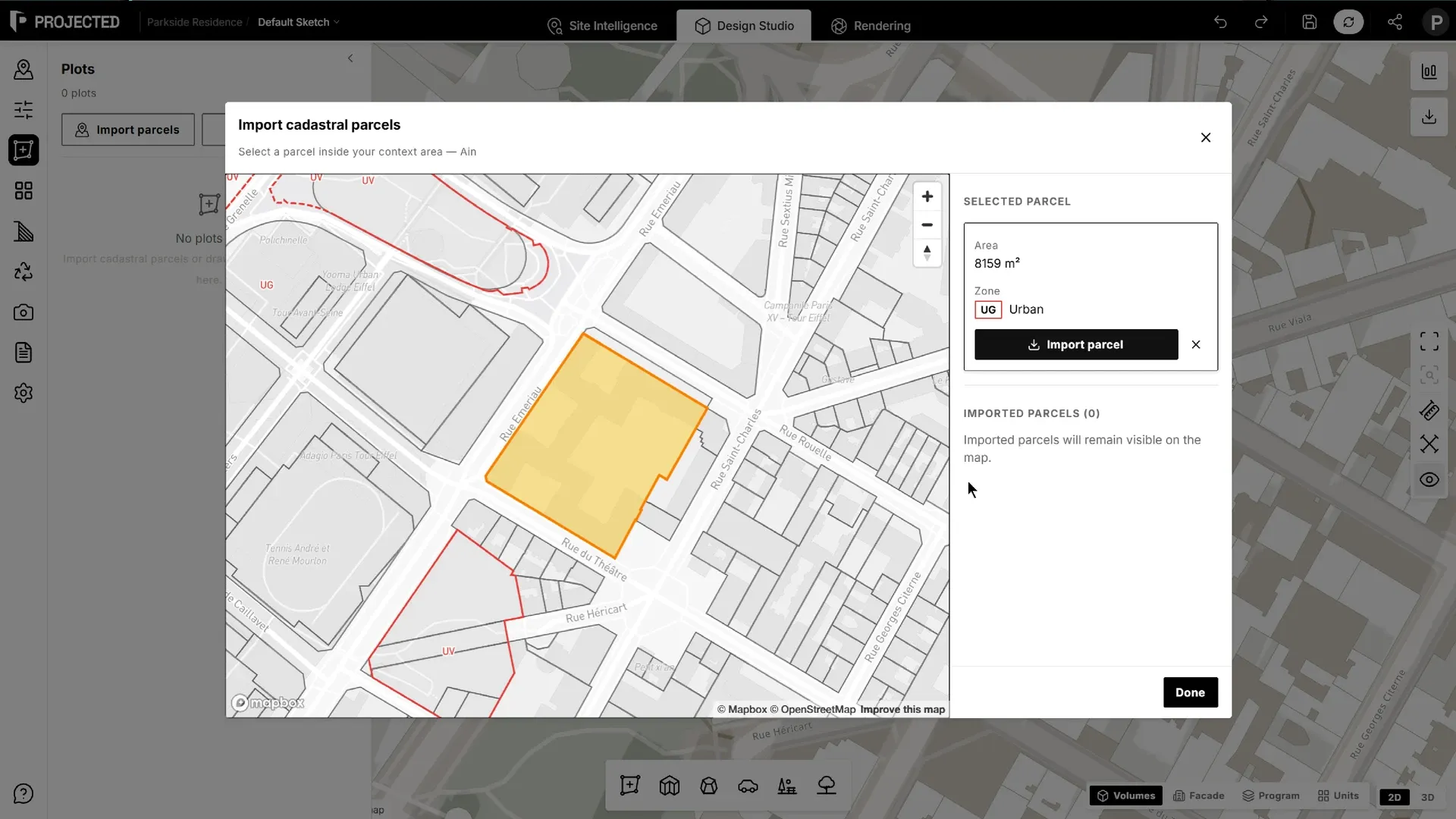
A project often sits on several adjoining parcels. When two or more new parcels are listed, tick Merge into one plot before Done to get a single plot covering them all; its area is shown under the option. Parcels that don’t touch can’t be merged.
Imported parcels stay visible on the map. To remove one, use Remove parcel and its plot. A merged plot is removed as a whole.
Note: Parcels can only be imported inside the context area. If the panel says the context area lies outside the parcel coverage, move the site or reduce the context area. The button stays disabled in countries without cadastral data.
Editing a plot
Select the plot to show its corners.
- Drag a corner to move it. The Editing Plot toolbar appears.
- Use Delete Point to remove the selected corner.
- Click Confirm to keep the change, or Revert to go back to the shape you started from.
- Click Exit when you’re done.
The plot’s area and perimeter appear in Properties.
Plot operations
With a plot selected, the element toolbar offers:
- Duplicate, Rotate and Mirror,
- Delete.
Existing buildings on a plot
To clear the buildings that stand on the plot today, open the plot in the Plots panel and click Remove existing buildings. This removes the surrounding buildings with at least half of their footprint on the plot. They can be restored from Site Context. See Existing buildings.
Next
- Set the site rules for the plot.
- Add buildings on it.