

Statistics & Measuring
Live site figures (areas, FAR, coverage, heights, parking) and tools to measure distances and areas.
The Statistics panel
Click Statistics at the top right of the viewport. The panel shows the key figures of your design and updates with every change. The red dot on the button means a site rule is broken somewhere.
Choose what the figures cover at the top of the panel: Whole site, or one plot. With a single plot, the panel opens on that plot.
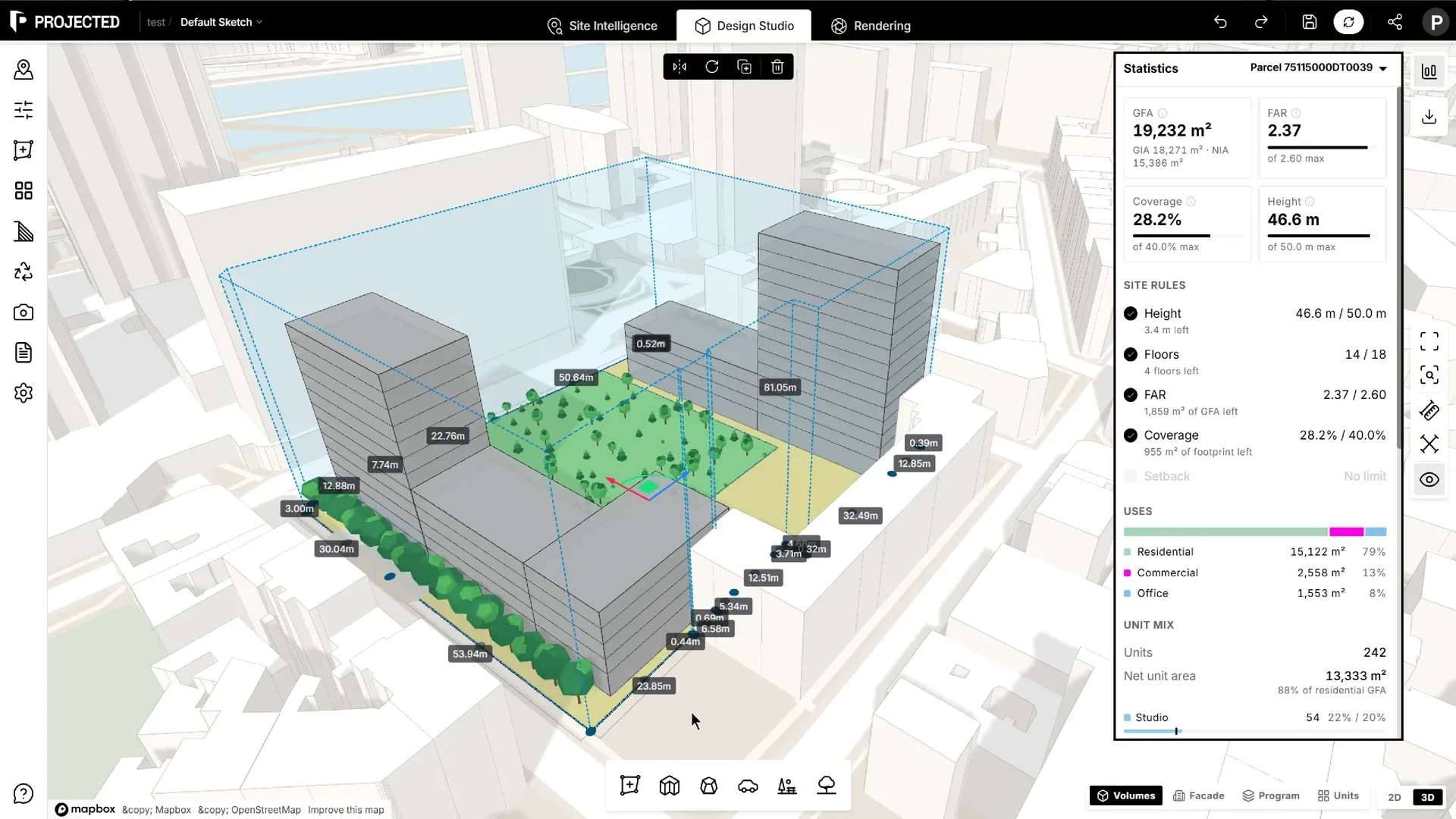
Headline figures
| Figure | Definition |
|---|---|
| GFA | Gross floor area: the sum of all floor areas. Below it, GIA (GFA x 0.95, to the inside face of external walls) and NIA (GFA x 0.80, usable area after walls, cores and circulation) |
| FAR | Floor area ratio: GFA divided by plot area. Also called plot ratio. |
| Coverage | Building footprints divided by plot area, in % |
| Height | The tallest building, roof included when it counts, with its number of floors |
When the plot has a limit for a figure, its card shows a bar towards the limit. It turns red when the limit is exceeded.
Site rules
For a plot with site rules, each rule is checked, with what is left before the limit:
| Rule | Shown as |
|---|---|
| Height | Tallest building / limit, and the metres left or over |
| Floors | Most floors / limit, and the floors left or over |
| FAR | FAR / limit, and the GFA left you can still build |
| Coverage | Coverage / limit, and the footprint left |
| Setback | The closest building’s distance to the plot boundary / required setback |
On Whole site, the panel lists the plots and whether each meets its rules. Click a plot to see its details.
Uses
A bar splits the GFA by use (residential, office, retail…), in the colours of the floors, with the area and share of each.
Below ground
Shown when a building has underground levels:
- Below-ground area: the building footprint on each level below ground, added up.
- Underground parking: the estimated places on parking levels, one per 25 m².
- A bar splitting the below-ground area by use.
Below-ground area is not part of the GFA, so it doesn’t count in FAR or coverage. Surface parking places stay under Parking in Site and open space.
Site and open space
| Figure | Definition |
|---|---|
| Plot area | Area of the plot(s) |
| Footprint | Area covered by buildings |
| Open space | Plot area minus footprint, and its share of the plot |
| Green area | Parks and the green islands of parking, with the green ratio (green area divided by plot area) |
| Trees | Number of trees |
| Parking | Parking places, including accessible places |
Unit mix
When the buildings have residential floors, the number of units, their net area with the efficiency (unit area divided by residential gross area), and each type’s achieved share against its target. Hover a type to pick out its units in the view. See Unit Mix.
Buildings
The buildings in scope, each with its floors, height and GFA, and its number of levels below ground if it has any. Hover a building to highlight it in the view; click it to select it.
A building belongs to a plot when its spine lies fully inside the plot.
Note: GIA and NIA are early-stage estimates from fixed ratios. The figures are the same as in the area schedule and PDF reports, and follow your project’s units (metric or imperial).
Measuring
The vertical toolbar on the right has the measuring tools.
Measure distance
- Click Measure Distance.
- Click points along the path you want to measure. Each segment and the Total are shown.
- Press Enter to finish. Esc clears the measure and closes the tool.
Measure area
- Click Measure Area.
- Click at least 3 points around the area.
- The area and Perimeter are shown. Press Enter to finish.
Show dimensions
Show Dimensions labels the lengths of the edges of your design elements in the viewport.
Navigation helpers
- Zoom Extents fits the whole project in the view.
- Zoom to Selected frames the selected element.