

Share Links
Share a read-only, interactive 3D view of your project with anyone, without an account.
A share link lets clients, colleagues and consultants explore your project in their browser. They don’t need a Projected account, and they can’t change anything.
Sharing a project
- Click Share in the top bar of the editor.
- Turn on Sharing enabled.
- Copy the link and send it.
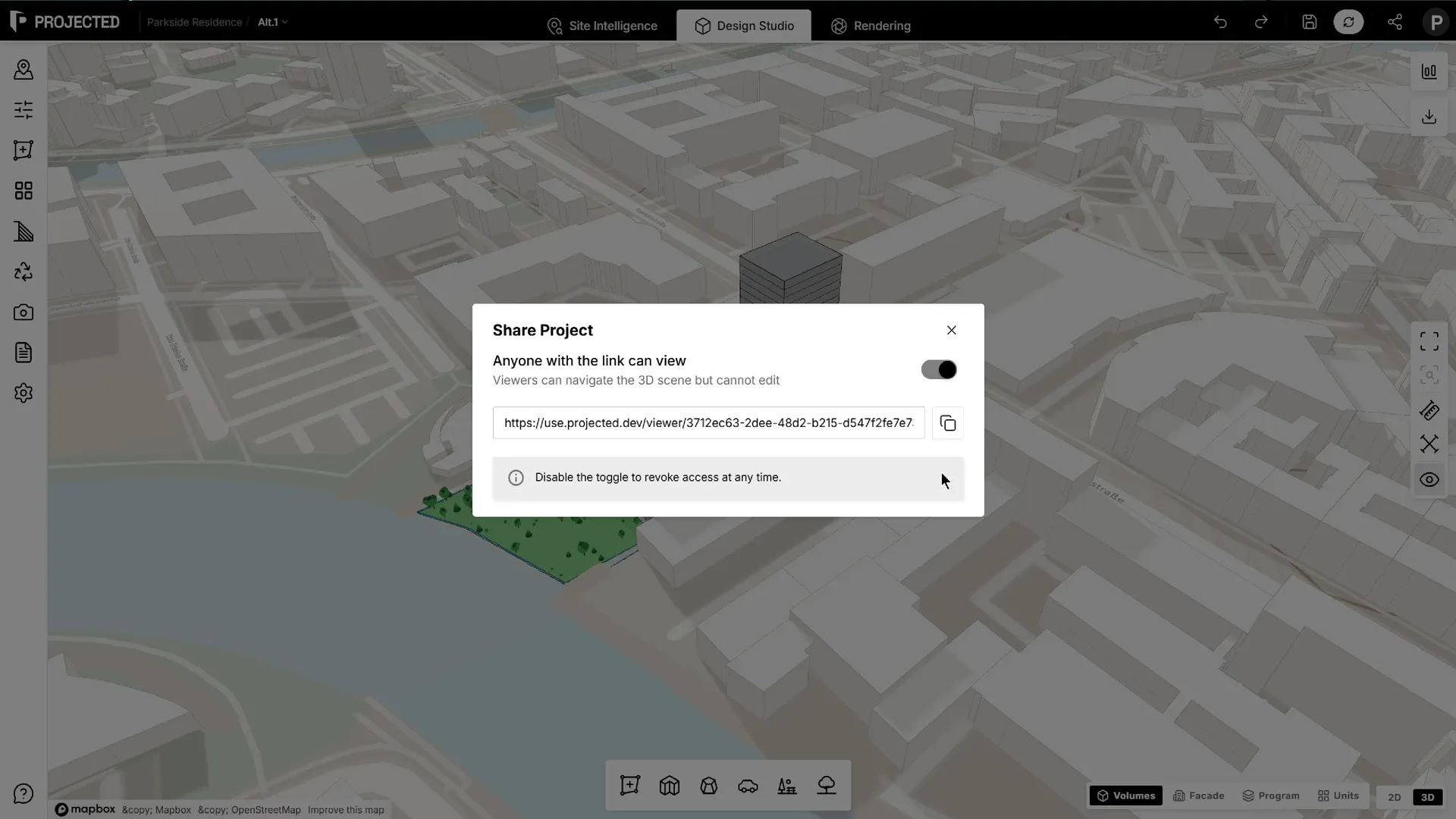
The link shares the whole project: every sketch in it.
What viewers can do
Anyone with the link can:
- navigate the 3D scene: orbit, pan and zoom,
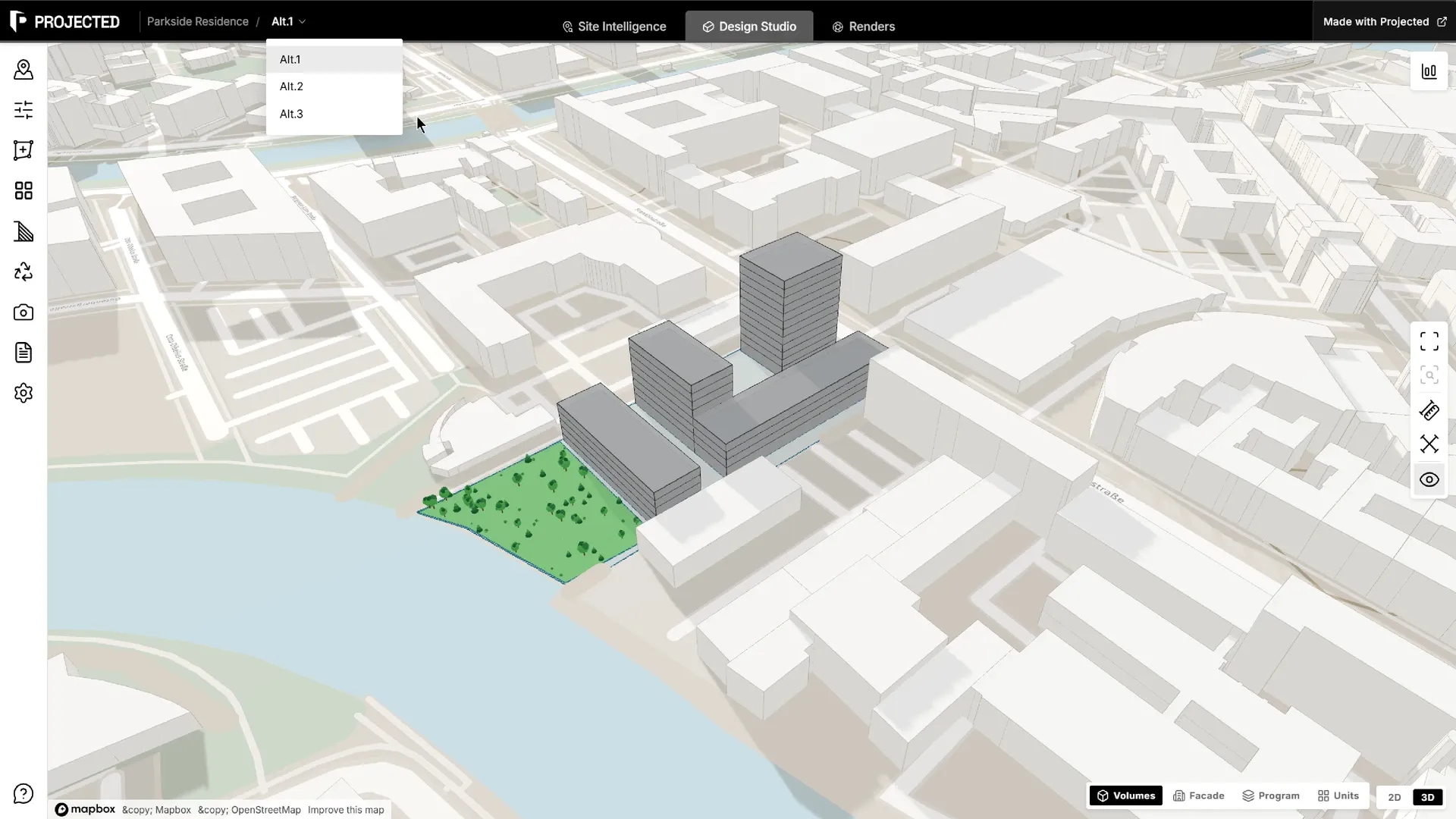
- switch between the project’s sketches from the breadcrumb,
- switch between Design Studio and Site Intelligence.
They cannot edit, save or generate anything.
The viewer shows the last saved state of each sketch, so it follows your work as you keep designing.
Stopping sharing
Open Share again and turn the toggle off. The link stops working immediately. Anyone who opens it then sees that the link is invalid or has been disabled.
Tip: Viewers see every sketch of the project. Delete or rename work-in-progress sketches before sharing, or keep internal options in a separate project.