

Unit Mix
Split the residential floors of your buildings into apartments by a target mix: studios, 1, 2 and 3 beds, with their area ranges, cores and corridors.
What is the unit mix
The unit mix splits every residential floor of your buildings into apartments, following the mix you are aiming for: the types of unit (studio, 1 bed, 2 bed…), the share of each, and the area range each must fall in.
The split works on the building’s floor plate only. It places units, stair and lift cores and, in deep buildings, a corridor, but no rooms or walls inside the units. Use it to test how many homes a massing gives, how close it gets to the brief, and how much of the floor area ends up in apartments.
The split updates on its own as you change a building’s shape, width or floors, or the mix.
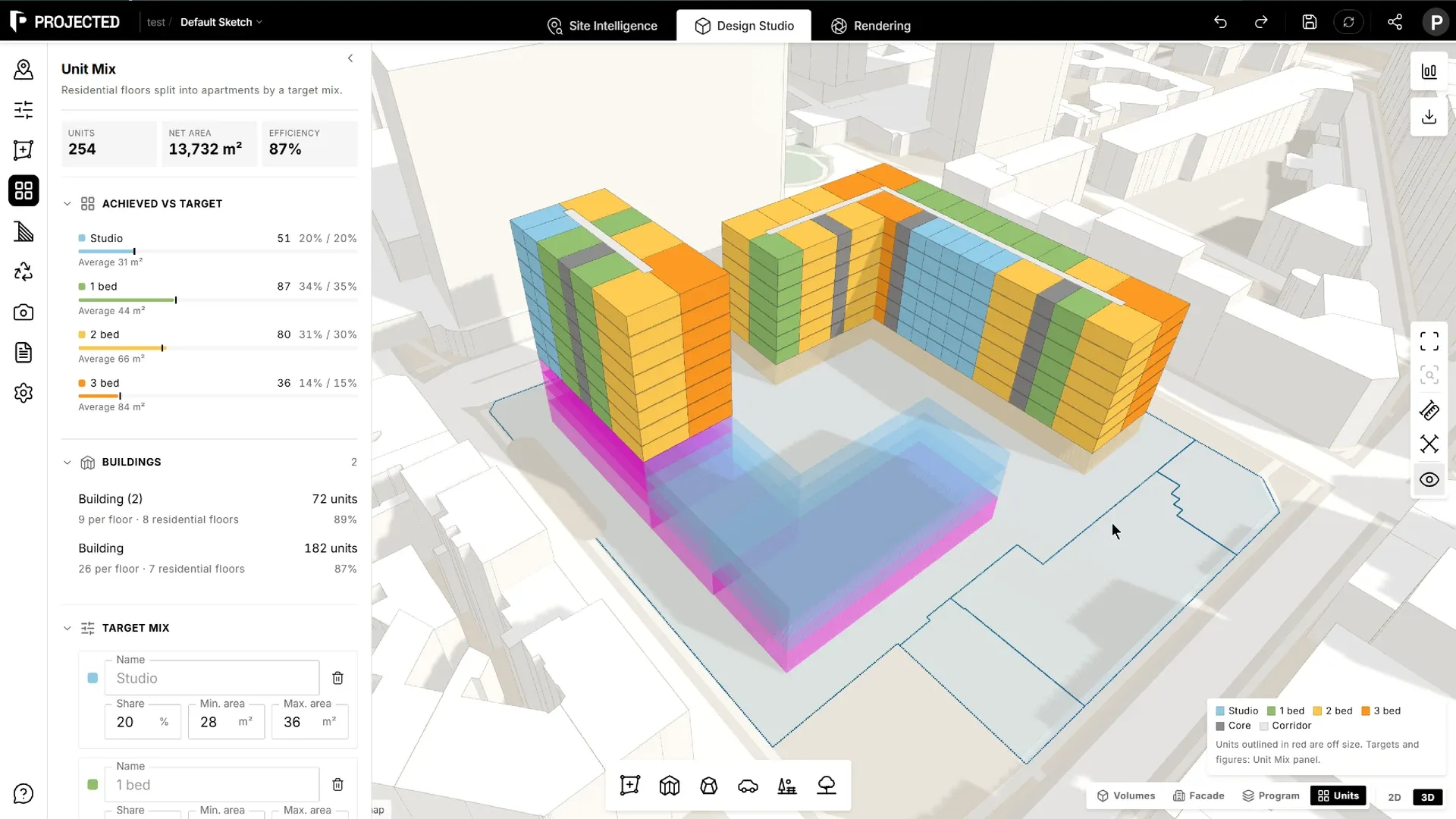
Opening the unit mix
There are two ways in:
- Click Units in the view bar at the top of the viewport. The view shows the split, and the Unit Mix panel opens.
- Click the Unit Mix icon in the left rail, in Design Studio (3D) or the 2D view.
Click Show in Units view at the top of the panel to switch to the Units view from any other view.
The Units view
In the Units view, each residential floor is drawn split into units, coloured by type, with the cores in dark grey and corridors in light grey. Floors with another use (office, retail…) are drawn as plain, translucent slabs in their use colour.
- Units outlined in red are off size: their area falls outside their type’s range (see Reading the results).
- A legend at the bottom of the viewport gives the colour of each type.
- Hover a type in the panel or in the Statistics panel to pick it out: its units stay solid and everything else turns to a faint wireframe.
- Click a building to select it.
Every residential floor of a building gets the same plan. A floor counts as residential when its use is residential, or when it has no use set.
Setting the target mix
Under Target mix, each type of unit has:
| Setting | What it does |
|---|---|
| Name | The type’s name, shown in the panel, the legend, reports and exports. Leave it as is to keep the built-in name. |
| Share | The share of the units you want of this type, in %. |
| Min. area and Max. area | The net area range a unit of this type should fall in, in m² (or ft² in imperial projects). |
The default mix:
| Type | Share | Area range |
|---|---|---|
| Studio | 20 % | 28–36 m² |
| 1 bed | 35 % | 42–52 m² |
| 2 bed | 30 % | 62–75 m² |
| 3 bed | 15 % | 80–95 m² |
Click Add type to add a type, up to six, and the bin icon on a type to remove it. Each type takes its colour from its position in the list.
Shares don’t have to add up to 100 %. When they don’t, the panel says so and reads them relative to each other: 2, 1 and 1 means half of the units of the first type and a quarter of each of the others.
The mix is project-wide: every building is split against the same targets, and the settings are saved with the sketch.
Layout
The Layout section (folded by default) sets how the floors are organised. The panel picks one of two layouts for each building from its depth:
Buildings up to the maximum depth: units around cores. Units run the full depth of the building, from one facade to the other, so every unit has two aspects. They are reached from stair and lift cores standing against one facade (on a bend, the inside of the bend). Each core serves a unit on each side, and with three units per core, a third unit in front of the core.
Deeper buildings: a central corridor. A corridor runs along the middle of the building, with units on both sides and cores along it. The corridor stops a door’s width past the last units, and the units at each end of the building take the full depth, so no floor area is lost to a corridor running out to the gable.
| Setting | What it does | Default |
|---|---|---|
| Units per core | 2 (one on each side) or 3 (the third in front of the core) | 3 |
| Core width | Size of a core along the building | 3.5 m |
| Core depth | Size of a core into the building, from the facade it stands on | 6 m |
| Max. depth | The deepest building served by cores with full-depth units. Deeper buildings get a corridor. | 14 m |
| Corridor width | Width of the corridor in deeper buildings | 1.6 m |
| A core every | Distance between cores along a corridor. Every building gets at least one. | 40 m |
Click Reset to defaults to go back to the default layout.
At bends of 45° or more, the building is split with square corners, so no unit ends up as a wedge. The longer wing keeps the corner. Gentle bends are followed with angled cuts.
Reading the results
The top of the panel sums up the whole project:
| Figure | What it means |
|---|---|
| Units | Number of units on all residential floors |
| Net area | Total area of the units |
| Efficiency | Unit area divided by the gross area of the residential floors, in %. The rest goes to cores, corridors and the slab edge. |
Achieved vs target compares each type’s share of the units with its target, with its number of units and average area. A warning lists the units that fall outside their type’s area range.
Buildings lists each building with its units per floor, residential floors and total units.
How the split is chosen
For each building, the panel works out the split that comes closest to the target mix while:
- covering the whole floor: no leftover space,
- keeping each unit within its type’s area range.
When the geometry doesn’t allow all of this, the target shares give way first, and a unit only goes off size when no other split fits. A small building may not have room for every type. Each building is solved on its own against the same targets, so the project’s mix is the sum of its buildings.
A large building takes a fraction of a second. While a split is computing, the panel shows Computing… and the view keeps the previous split.
Note: Unit areas are measured on the outline of the floor plate, without walls. Read them as early-stage net areas, like the GIA and NIA in the Statistics panel.
In the statistics, reports and exports
- Statistics panel: a Unit mix section gives the number of units, the net unit area with the efficiency, and the achieved share of each type against its target. Hover a type to pick it out in the view.
- PDF reports: the Unit mix section has the headline figures, the mix against the targets with a bar chart, a table by building, and a typical residential floor of each building. See PDF Reports.
- Area schedule: two extra tables, Unit mix and Units by building. See Area Schedule.
- 3D & CAD export: with the Unit mix option on, GLB and Rhino files include the units of every residential floor, and DXF files a typical floor of each building, on a layer per type. See 3D & CAD Export.
Limitations
- No interior layout. Units are cells of the floor plate: no rooms, walls, balconies or windows.
- One plan per building. Every residential floor gets the same plan. Setbacks between floors and different mixes on different floors are not modelled.
- Two layouts. Units around cores, or a central corridor. Single-loaded galleries (access decks) and towers with a single central core are not available.
- Buildings are drawn as spines. The split follows the building’s spine and width. Volumes are not split.
Tips
- Start from the brief. Enter the types and area ranges of the brief first, then adjust the massing and watch the achieved mix and the efficiency.
- Widen a range before changing the mix. Off-size units usually mean that a wing’s length doesn’t divide into the types well. A slightly wider range often fixes it.
- Compare depths. Going from 14 m (full-depth units) to 16 m (corridor) changes both the number of units and the efficiency. Try both with Max. depth.
- Hover a type in the Statistics panel to see where it lands in the buildings.