

Your First Project
From an address to a first massing study with figures and a report, in about fifteen minutes.
This guide takes you through a complete first study: create a project, look at the site, draw a plot and a building, check the figures and produce a report.
1. Create your account
Sign up at use.projected.tech with your email address. You receive a 6-digit code to verify the address. A short onboarding then asks about your role and the tools you use. You can skip the optional questions.
Your 14-day free trial starts right away, with every Pro feature.
2. Create a project
- On the dashboard, click New Project.
- Give the project a name and, optionally, a description.
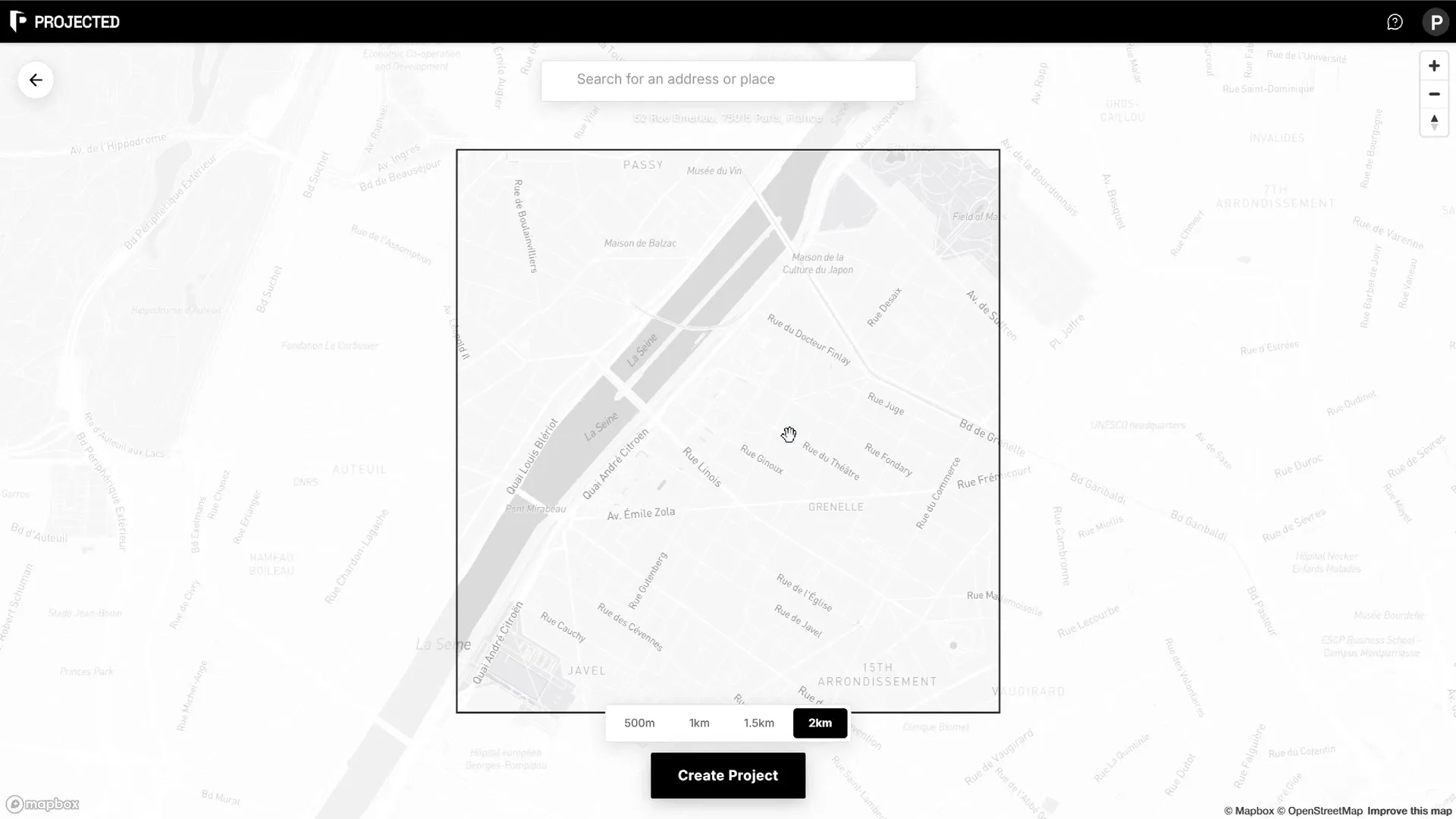
- Click Next, then search for the site’s address or place on the map. Move the marker if needed.
- Choose the context area loaded around the site: 500 m, 1 km, 1.5 km or 2 km.
- Click Create Project, then Start Editing.
The editor opens in Design Studio with the surrounding buildings, roads and terrain already loaded.
3. Look at the site
Click Site Intelligence in the top bar to see the site on a map. Open the Surroundings, Climate, Solar & Daylight and Wind panels from the left rail to understand the context. See Site Intelligence.
Click Design Studio to come back to the 3D editor.
4. Draw a plot
- Click Add Plot in the main toolbar at the bottom of the screen.
- Click on the map to place the corners of your site boundary.
- Click the first point again, or click Finish, to close the shape.
If cadastral data is available for your country, you can import the parcel instead: open Plots from the left rail and click Import parcels. See Plots.
5. Set the site rules
Open Plots from the left rail, click your plot to open it and, under Rules, click Add Site Rules. Enter the setback, maximum height or floors, floor area ratio and site coverage that apply to the site. Turn on Show Buildable Envelope to see the volume you can build in. See Site Rules.
6. Add a building
- Click Add Building.
- Click to place points along the line of the building. The building has a width on either side of that line.
- Press Enter to continue, then move the mouse up or down to set the height, and click to confirm.
Select the building and open Properties to set the number of floors, the use of each floor, the roof and the facade. See Buildings.
7. Read the figures
Click Statistics at the top right to see the gross floor area (GFA), floor area ratio (FAR), site coverage, height, uses, open space and parking. The panel updates as you design, flags any value that breaks a site rule, and shows how much you can still build. See Statistics & Measuring.
8. Produce a report
Open Reports from the left rail and click Create New Report. Pick the Full report preset, or drag sections into your own layout, and click Generate Report. The PDF is saved with the project and ready to download. See PDF Reports.
What next
- Try design options side by side as separate sketches.
- Run a shadow study or a carbon analysis.
- Share a read-only link with your client.