

Interface Overview
The top bar, the left rail and its panels, the viewport and the toolbars of the Projected editor.
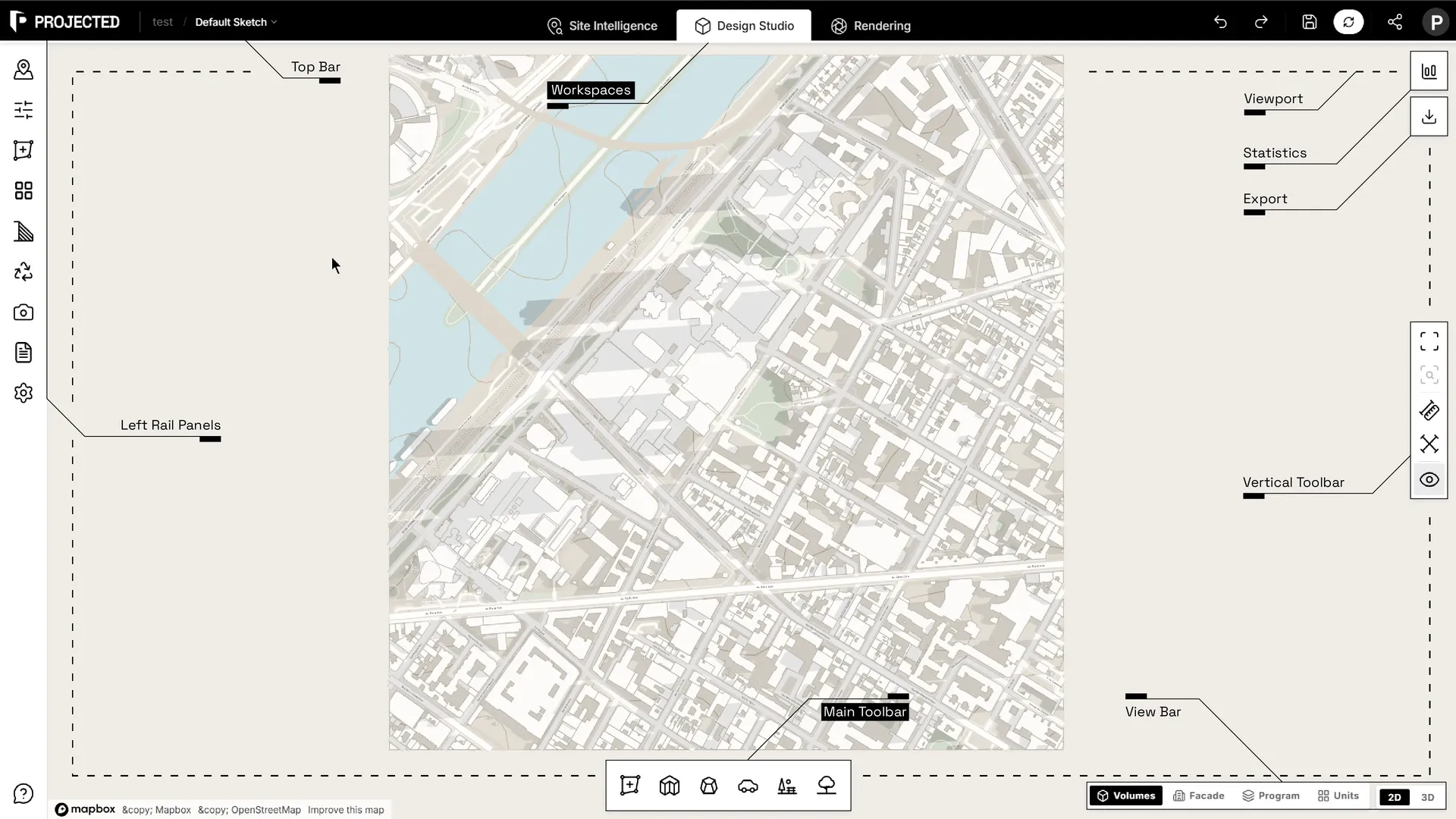
Top bar
From left to right:
- Breadcrumb. The project and the current sketch. Click the sketch name to switch, create, duplicate, rename or delete sketches. See Projects & Sketches.
- Workspaces. Site Intelligence, Design Studio and Rendering.
- Undo and Redo.
- Save, with the autosave status. The editor saves on its own every few seconds, when you switch workspace and when you leave the page.
- Share, to create a read-only link. See Share Links.
- Account menu, with your settings, the documentation and logout.
Left rail and panels
The icons on the left open panels. The panels depend on the workspace:
| Panel | Design Studio | Site Intelligence |
|---|---|---|
| Site Context: location, map layers, imported 3D context | ✓ | ✓ |
| Properties: settings of the selected element | ✓ | |
| Plots: every plot, cadastral parcel import, and each plot’s rules (setbacks, height, FAR, coverage) | ✓ | |
| Unit Mix: target apartment mix, and the split of residential floors into units | ✓ | |
| Shadow Analysis: sun position and shadows | ✓ | |
| Carbon Analysis: embodied and operational carbon | ✓ | |
| Named Views: saved camera views | ✓ | |
| Surroundings: amenities, travel times, green spaces | ✓ | |
| Climate, Solar & Daylight, Wind: site weather data | ✓ | |
| Reports: PDF reports | ✓ | ✓ |
| Settings: units and preferences | ✓ | ✓ |
Click an open panel’s icon again to close it.
Viewport
The viewport shows your project in 3D, or in plan when you switch to 2D.
| Action | Mouse | Trackpad |
|---|---|---|
| Select | Left-click | Click |
| Orbit (3D) | Right-drag | Two-finger click and drag |
| Pan | Middle-drag (right-drag in 2D) | Two-finger swipe |
| Zoom | Scroll wheel | Pinch |
Double-click a building to edit its shape. Zoom Extents in the vertical toolbar brings the whole project back into view.
Toolbars
- Main toolbar (bottom centre): Add Plot, Add Building, Add Volume, Add Parking, Add Park and Add Trees. While you draw, it shows the drawing options, such as Snap and Input for exact lengths.
- Element toolbar: appears above a selected element with Duplicate, Rotate, Mirror, Split and Delete.
- View bar (top centre): Volumes, Program, Facade and Units views, and the 2D / 3D switch.
- Vertical toolbar (right): Zoom Extents, Zoom to Selected, Measure Distance, Measure Area and Show Dimensions.
- Statistics (top right): site figures, updated live.
- Export (top right): GLB, Rhino, DXF and area schedules. See 3D & CAD Export.
Views
| View | Shows |
|---|---|
| Volumes | Buildings and roofs as massing. |
| Program | Floors coloured by use. |
| Facade | Windows, balconies and entrances. Select a building to edit its facade. |
| Units | Residential floors split into apartments, coloured by type. See Unit Mix. |
Read-only mode
When a project is opened from a share link, or when your subscription has ended, the editor opens read-only: you can navigate, inspect and export, but not edit.